


 Ecommerce
On this page
How to Create Social Media Content in Bulk From One Mockup
Here’s the short version: compose your product mockup once, tick every social format you need, render them together, and download a single ZIP of finished, correctly sized creatives. No rebuilding a design per platform. No opening eight files to make one post go everywhere.
That’s how to create social media content in bulk, and the feature in Dynamic Mockups doing the work is called Layouts.
Layouts takes one mockup and multiplies it across many social formats at the same time. Instagram post, Story, Pinterest pin, Facebook, all composed from the same render in a single pass.
You compose the design one time. Layouts handles the sizing for every channel you picked.
Who gets the most out of this:
- Social managers: a full calendar filled from fewer sessions.
- VAs and freelancers: client turnarounds that don’t eat the whole day.
- Agencies: several brands, one repeatable batch each.
- POD sellers: one product, every channel it sells on.
And there’s good reason to be on all of them. The average person now spreads their attention across 6.7 social platforms every month, so one design almost never has just one job.
Picture a normal Monday. One new t-shirt design, and it has to look right as a square feed post, a vertical Story, a tall pin, and a wide Facebook image. Same shirt, four shapes, and that’s before you add a second color.
Treat this as a system, not a one-off trick. Once your format set is built, next week’s batch is nearly a click.
One thing before the steps: composing your mockup and exporting the base image are free, with no watermark. You only touch credits later, and we’ll cover exactly when.
That means you can test the whole workflow end to end, build a mockup and pull a real file, before you decide a paid plan is worth it.
If you want the posting-and-growth side of this, we cover print-on-demand social media strategies separately. This post is pure production, making the images in bulk.
The Resize Tax: Why 10 Designs Turn Into 80 Files
Let’s do the math out loud.
You have 10 designs. You post to 8 channel formats. That’s 80 separate image files for one week of content.
Here’s what those 8 formats often look like for a single product:
- Instagram: a square feed post, a 4:5 feed post, and a 9:16 Story.
- Pinterest: a tall pin.
- Facebook: a wide feed image.
- The extras: a TikTok cover, an X post, and a banner or two.
Now run 10 designs through that list. For a lot of shops, 80 files is just a normal week.
By hand, that’s a lost afternoon. Maybe two.
Here’s where the time goes. Most template tools make you place a design, export it, then reposition and re-export the same design for the next size. One file at a time, every time.
Call it the resize tax. Every platform wants its own shape, so every design gets rebuilt for every slot.
The sizes really are all different. An Instagram feed post now wants a tall 1080 x 1350 frame at 4:5, while a Story wants 1080 x 1920 at 9:16, and Pinterest and Facebook each ask for something else again.
Multiply that by a content calendar and a few clients, and the resize tax turns into a standing weekly cost. It’s the quiet reason social managers, VAs, and agencies lose hours they never planned to spend.
And it doesn’t stop. Next week brings 10 more designs and the same 8 slots, so the afternoon you lost is an afternoon you keep losing.
Bouncing between design, export, and rename drains focus through constant context switching, which is exactly the kind of task-hopping batching is built to kill.
The fix is simple to say. Produce every format from one render instead of touching one file at a time.
We already do this for product listings, where sellers make thousands of mockups in minutes. Social formats work the same way.
Step-by-Step: Batch Your Social Formats With Layouts
Four steps, start to ZIP. You can run the whole thing in one browser tab.
No Photoshop, no plugins, no design skills past dragging your artwork into place. If you can tick a checklist, you can run a full batch.
Step 1: Pick Your Mockups
Start with the products you want to show.
Pull in your own PSD files, choose from our 100,000+ free mockup templates, or turn a plain product photo or just a prompt into a reusable mockup with the MockAnything AI mockup generator.
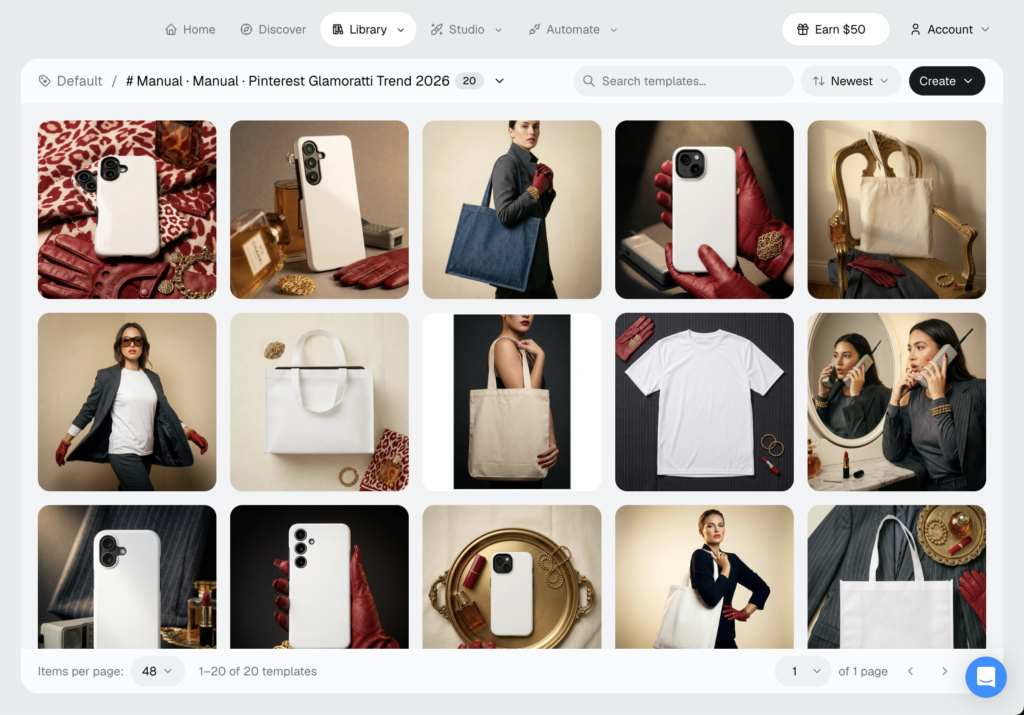
Drop your design onto each mockup and set it the way you want it. This is the only composing you’ll do.
Set it once and it stays consistent across every size in the batch, so your logo sits the same on the square post and the tall pin.
Step 2: Tick the Channels and Formats
Now choose where the content is going.
Check the formats you need: Instagram post, Instagram Story, Pinterest pin, Facebook, and whatever else your calendar calls for.
Tick as many as you like. Each one you add is another finished size coming out the other end, at no extra effort on your part.
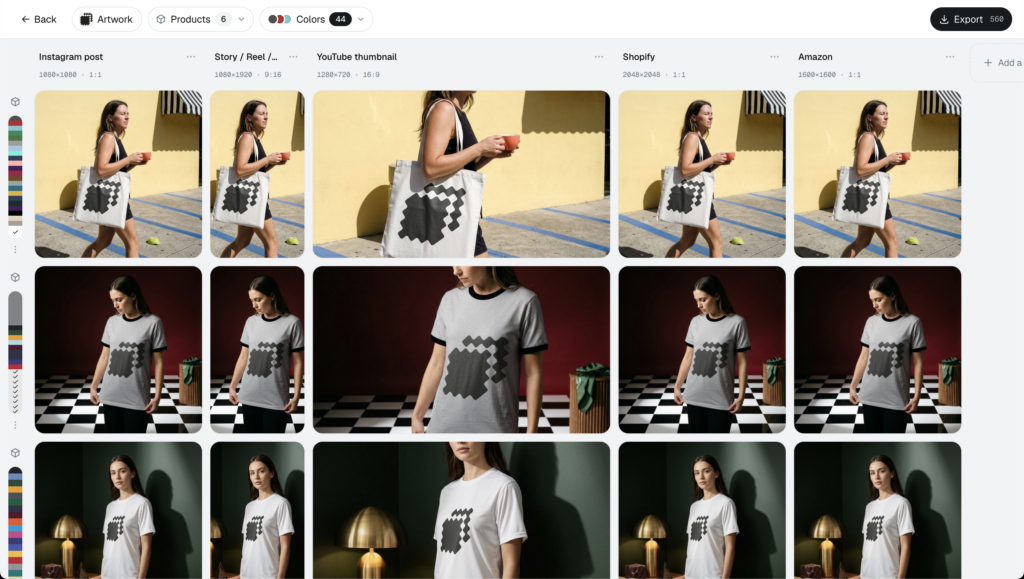
That checklist is your channel set. In a moment you’ll be able to save it and reuse it every week.
Step 3: Watch the Grid Fill
Hit go and watch the grid populate.
Layouts composes each format for you, one tile at a time, until every channel you picked is sitting there as a finished creative.
No manual cropping. No re-centering the logo for the vertical version. The design you set in Step 1 is placed correctly for every shape.
What used to be an afternoon of cropping happens while you watch.
Step 4: Export One ZIP
Send the whole batch to export and you’ll get a single ZIP.
The render runs in the background, so keep the tab open and carry on with other work while it builds. Write captions, plan next week, answer a client. Come back to a finished download.
A batch of 80 finishes without you babysitting it. That’s the whole point.
The Export: One ZIP With Bulk-Upload-Safe Filenames
Open the ZIP and here’s the part that saves the second afternoon.
Every file arrives named and sorted. You’ll see a folder per channel, and inside each one, creatives with clear names like Instagram post/Blue_Tee_Instagram_post.jpg.
Those filenames do a job. Bulk-upload-safe names mean you can push the whole batch into a scheduler or a listing tool without renaming a thing.
Think about what you’d normally do here. Download a pile of image1, image2, image3 files, then sit there matching each one to the right design and the right platform by eye.
Run three tees across four channels instead, and you open the ZIP to a dozen files that already say what they are. Blue tee, red tee, black tee, each sorted into its platform folder, each ready for its slot.
Skip all of it. The folders keep a multi-design, multi-format batch organized on their own, so a week of social media graphics is ready to schedule the moment it downloads.
Drop a whole folder into your scheduler for the week’s posts, or point a product folder at a Shopify or Etsy listing. Either way, the naming is already done, so nothing waits on you.
This is the step most template tools leave to you. It’s also the one that turns a finished render into content you can actually post without more busywork.
What’s Free and When the Credit Meter Starts
Let’s be straight about cost, because it’s the first thing people ask about bulk social media graphics.
Composing your mockup and exporting the base image are free, and there’s no watermark on the result. You can build a design and pull a clean file without spending anything.
For a lot of sellers running a handful of designs a week, that free tier covers the base workflow on its own.
While you set up a batch, you’ll see an honest counter that reads something like “N images, M renders.” It tells you upfront exactly what the batch will use before you commit to it.
Here’s the part that matters for social work: adding more formats doesn’t start the meter. You can send one design to every channel shape without touching credits.
Credits come in when you multiply the design itself. More colorways, more artworks, a wider product range. You pay to make more products, not more sizes.
A quick example. Three designs sent to four formats is 12 finished images from 3 renders, because the formats ride along for free. The counter shows you that split before you export, so nothing about the bill is a surprise.
The export runs in the background either way. Keep the tab open while it processes and get on with something else.
If you want the full breakdown, here’s how credits work on paid plans.
Build a Repeatable Batch System in 2026 With Dynamic Mockups
The first batch takes a few minutes to set up. Every batch after that should be faster, and here’s how you get there.
Save your channel set as a reusable layout. Once your Instagram-plus-Story-plus-Pinterest-plus-Facebook combination is stored, next week’s batch starts from that template instead of a blank slate.
That saved layout is the difference between a Monday that starts from zero and one that starts from nearly done. Load it, swap in this week’s designs, hit export.
Then re-skin. Point a whole new collection at one saved layout and every product comes out in every format, without adding hours to your week.
That’s the real win of a content batching workflow. Working in focused sessions instead of post-by-post lets you produce higher-quality content faster, with fewer of the interruptions that eat a normal week.
Scale it further when you’re ready. Pair Layouts with our Bulk Mockup Generator to turn one design set into product and social media content for every platform in a single run.
This is how bigger teams drop the grind.
The rhythm ends up simple. One focused session on Monday, one saved layout, one render, and the whole week’s content is sitting in a folder before lunch.
Your move is smaller. Pick a few mockups, tick your formats, and let one render cover the week.
Start batching your social content for free.
Showcase your E-commerce products like big brands, without costing a fortune. Sign up today. No credit card required. →
Frequently Asked Questions
How do I create social media content in bulk?
Compose your product mockup once, tick every social format you need, render them together, then download a single ZIP of finished, correctly sized creatives. In Dynamic Mockups this runs on Layouts, which multiplies one design across Instagram, Story, Pinterest, and Facebook in a single pass. No rebuilding per platform, no opening eight files to make one post go everywhere.
Can one mockup cover every social media format?
Yes. You compose the design one time and the sizing gets handled for every channel you picked. One render becomes a square Instagram post, a 4:5 feed post, a 9:16 Story, a tall Pinterest pin, and a wide Facebook image. Adding more formats needs no extra work, since each shape comes from the same base render.
Is it free to bulk export social media graphics?
Composing your mockup and exporting the base image are free, with no watermark, so you can test the whole workflow end to end. Adding more formats never starts the credit meter either, meaning one design can go to every channel shape for free. Credits only apply when you multiply the design itself, like more colorways or artworks.
How long does it take to batch create a week of social posts?
The first batch takes a few minutes to set up. After that, a full week can be ready before lunch: load a saved layout, swap in this week’s designs, and hit export. A batch of 80 files renders in the background while you write captions or plan ahead, so you come back to a finished download.
What is the fastest way to make product images for every platform?
Compose one mockup, tick every platform format, then batch-render them together into a single ZIP with bulk-upload-safe filenames. Save that channel set as a reusable layout, and next week you just swap in new designs and export. Pairing Layouts with a bulk mockup generator turns one design set into product and social content for every platform in one run.
![How to Make a Gift Box Mockup From a Prompt [2026]](https://dynamicmockups.com/wp-content/uploads/2026/08/gift-box-mockup-cover-768x403.png)