


![Scent Stacking Mockups for 2026: The Pinterest Trend to Ride [Guide]](https://dynamicmockups.com/wp-content/uploads/2026/08/scent-stacking-mockups-2026-cover-768x403.png) Ecommerce
Ecommerce
On this page
How to Make a Gift Box Mockup From a Prompt
If you don’t want to dig deep into this guide, here is the fast version.
Open Dynamic Mockups, on the homepage MockAnything AI type a prompt like “A single premium rigid gift box at a three-quarter angle on a light travertine counter in a modern boutique, top, front, and right side clearly visible”, for POD product choose “Wrapped Box with a Bow” if you want the gift box with a ribbon or just a “Wrapped Blank Box” if you want the box without the ribbon.
Then once you get the mockup ready, upload your seamless artwork and we will automatically apply the pattern mode. Then, set the tile scale, move the pattern how you would like to present it, and download the gift box with your pattern artwork. No Photoshop, and the free plan covers the whole thing.
That is the entire workflow for a custom gift box mockup, start to finish, in your browser.
This is the result after these steps:
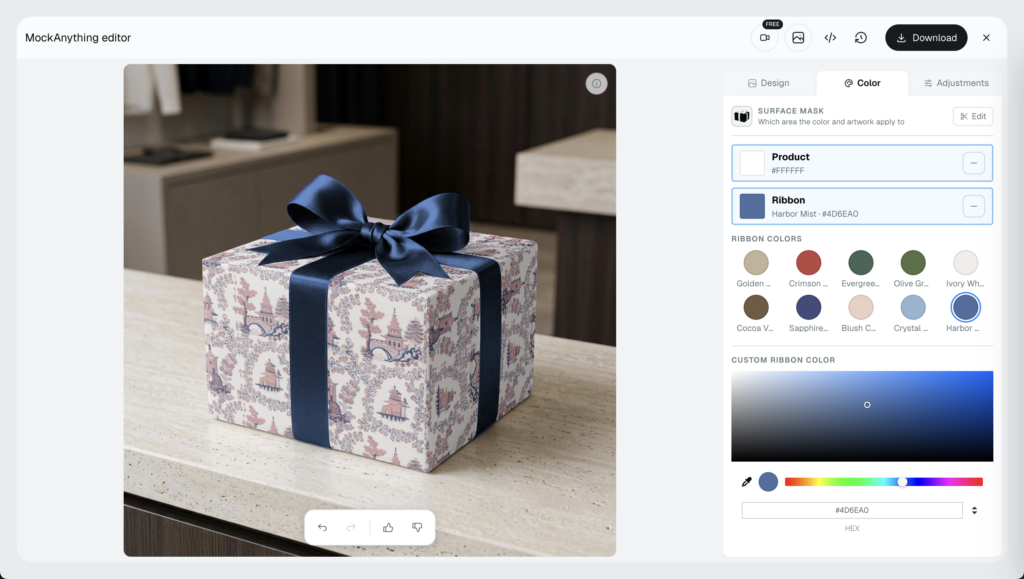
A gift box mockup is a packaging mockup that shows a wrapped or lidded box with your own design printed across its surface. It shows a buyer what your packaging looks like as a real object, not a flat file on a screen.
So who actually needs one? Gifting brands, wrapping paper sellers, subscription boxes, and small packaging studios. For all of them the surface design is the product, so the box has to look sold before anyone reads a single word.
It is a serious market, too. The global gift packaging market was worth roughly $27.5 billion in 2024, according to Precedence Research, and every one of those boxes needs a picture before it sells.
Here is the payoff, up front. Your artwork repeats across the top, the front, and the right face of the box, and the whole thing still reads as a credible product scene rather than a swatch taped onto a photo.
That matters because online, the image is doing the selling. About half of online shoppers would rather look at images than read text, so your box has to carry the design convincingly on its own.
You get all of that without buying a single PSD or opening an editor you have to learn first.
The best part: Pattern is built straight into the editor, and it costs nothing to switch on. It is one of the simplest ways to make mockups without Photoshop when your design has to wrap around a three-dimensional object.
Step 1: Generate a Blank Gift Box Scene
You have two ways to get a blank box on screen. Pick the one that matches how particular you are about the shot.
Path A: Start from a prompt. Open MockAnything AI in our web application, and describe the scene in plain words. It reads your prompt and returns a photographed, empty gift box you can print on.
Think of it as a gift box mockup generator that builds the set for you, instead of making you dig through folders of PSDs.
A good prompt names a few concrete things:
- Box type: wrapped blank box, drawer box, or a box with a ribbon.
- Surface: matte, glossy, kraft, or textured paper.
- Setting: the table or backdrop, like linen, marble, or a plain studio sweep.
- Light and angle: soft daylight, three-quarter view, box sitting on a table.
So “a matte white wrapped blank gift box, three-quarter angle, on a linen surface in soft daylight” gives you far more to work with than just “gift box.”
Match the scene to where the mockup will end up. A clean studio sweep suits a product-page hero shot, while a styled table with a few props fits a lifestyle ad or a seasonal campaign.
Here’s an example in our MockAnything AI tool of how you can achieve that:
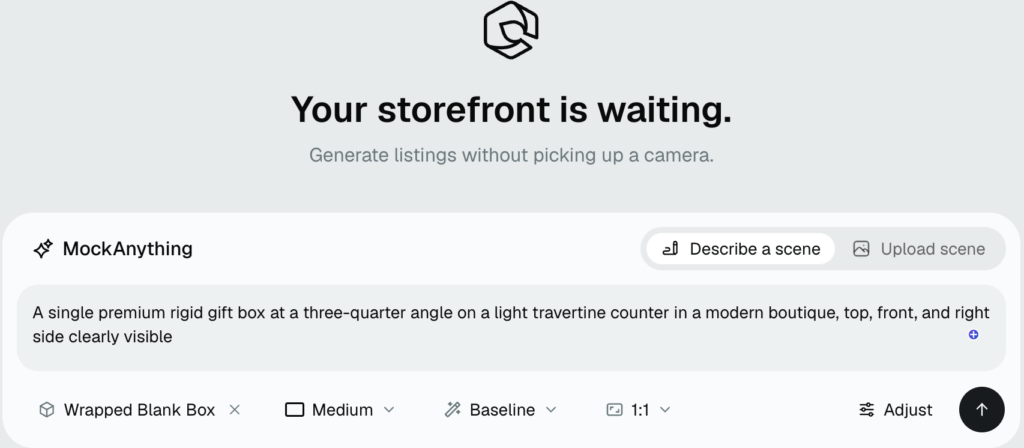
As you can see in the image example, I’ve typed the prompt: “A single premium rigid gift box at a three-quarter angle on a light travertine counter in a modern boutique, top, front, and right side clearly visible“, also, I’ve chosen “Wrapped Blank Box” as a POD product.
A three-quarter view that reveals the top, the front, and the right side gives your pattern room to breathe. A flat, head-on shot only shows one face, which throws most of your design away.
One last rule for this step. Keep the box surface blank. A plain, undecorated box is what lets your artwork drop on cleanly next, with nothing from the original scene bleeding through.
Step 2: Upload Your Artwork and Enable Pattern
This is where a gift box mockup is won or lost, so it is worth slowing down for.
Start by uploading a seamless design. Seamless, also called tileable, means the edges of your file line up with themselves, so when the motif repeats there are no visible seam lines running across the box. For a full walkthrough on prepping a tileable file and dialing in the repeat, see our seamless pattern mockup guide.
Not sure if your file is tileable? Set it beside a copy of itself.
If the join disappears, you are good. If a hard line shows up, run a quick repeat in your design tool before you upload.
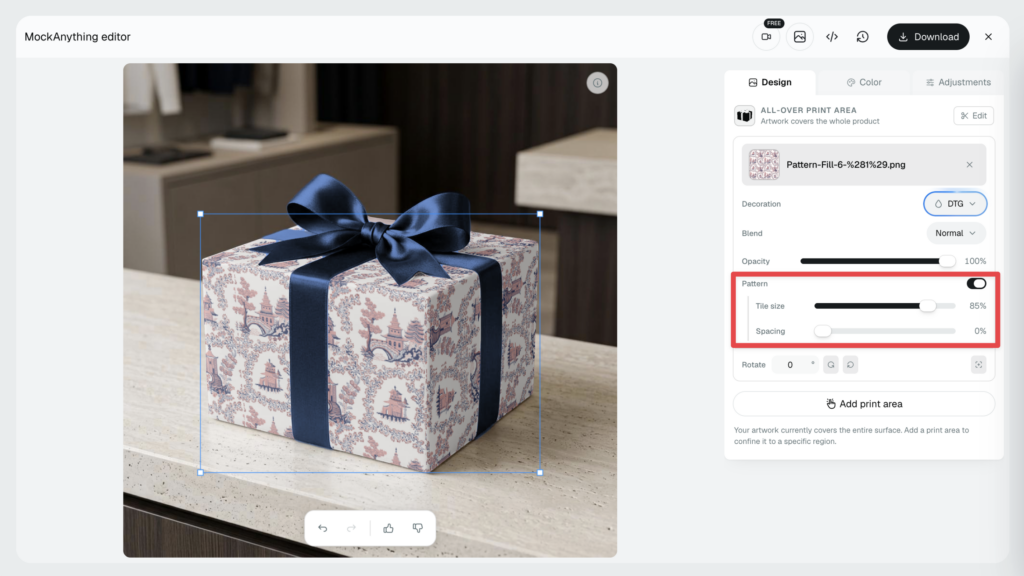
Then switch on the Pattern.
Pattern tells the editor to repeat your design across every visible face of the box, and to keep the same motifs and colors flowing from the top, down the front, and around to the side. You get true all-over coverage instead of one logo stamped in the middle, which is how printed wrapping actually behaves.
A single placed graphic would sit flat on one face and stop at the edge. Pattern keeps drawing the design around the corner, so the side of the box looks printed rather than cropped.
Upload the file at a high resolution while you are at it. A low-res design looks fine when the tiles are small, then goes soft the moment you scale the motifs up and they fill more of each face.
Now set the tile scale. This controls how large each motif prints on the box:
- Scale up for a bold look with a few large motifs per face.
- Scale down for a dense, fine, busy repeat.
- Drag to position and watch the design move on the box live, until it sits exactly where you want it.
Watch the edges while you scale. The live preview is there so you can catch a motif getting sliced awkwardly at a corner, or a key element hiding under the lid, and nudge the design before you commit.
💡 Pro tip: There is no generative re-render happening here. Because you are placing your real design on the box, nothing gets regenerated, so there is no loading spinner to wait on and nothing extra to pay per image. The artwork on screen is your artwork, pixel for pixel.
That discipline is the whole point of good branding product mockups. The logo, the colors, and the exact repeat that leave your file are the same ones your customer ends up seeing.
Step 3: Edit the Ribbon Without Repainting the Box
If you generated a box with a ribbon, follow this step so you don’t miss anything.
Plenty of gift boxes come with a ribbon, and the ribbon is exactly where lazy mockups give themselves away. Ours treats it as its own layer.
The ribbon is edited separately from the printed faces of the box. It sits in front of the box in the scene, so it never picks up the artwork underneath it.
That is how a real ribbon behaves. It lies on top of the wrapping and hides the thin slice of pattern directly beneath it, rather than having your design painted onto the ribbon as well.
So you can change the ribbon color freely. Swap it from navy blue to deep red in one click and see the results.
This is handy for variants. Run the same box with a red ribbon for the holidays and a soft pastel one for spring, and you have two seasonal listings out of a single setup.
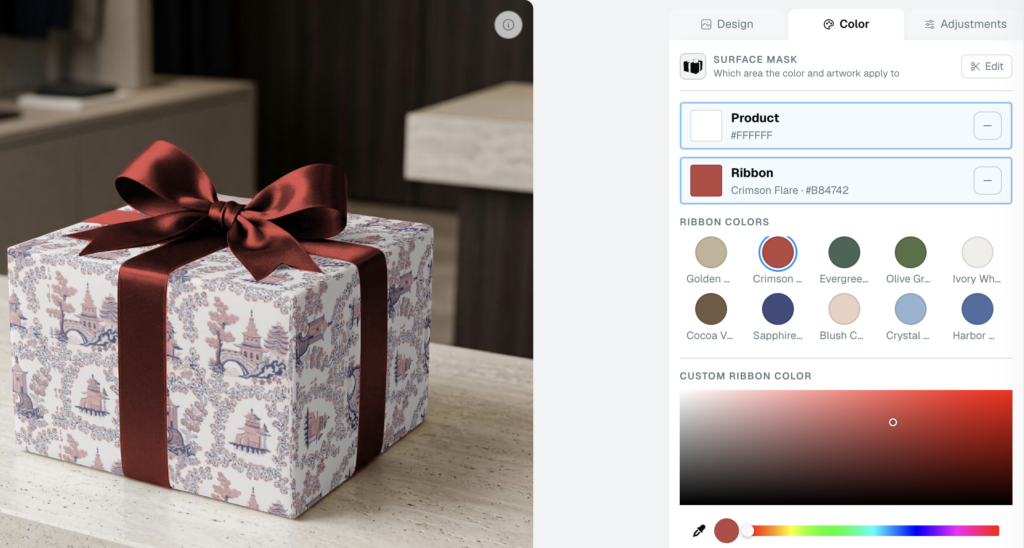
The result is a gift box packaging mockup that looks assembled by a person, not flattened into a single sticker.
Step 4: Save Your Template and Download the Mockup
When the box looks right, save it as a template. It reopens later with the same artwork loaded and Pattern still switched on, so you never rebuild the setup from scratch.
Then download your finished mockup. One clean, high-resolution image is all you need for an Etsy listing, a Shopify product page, or a paid ad. Export it once and reuse the same file wherever you sell, from your storefront to an email header to a TikTok Shop post.
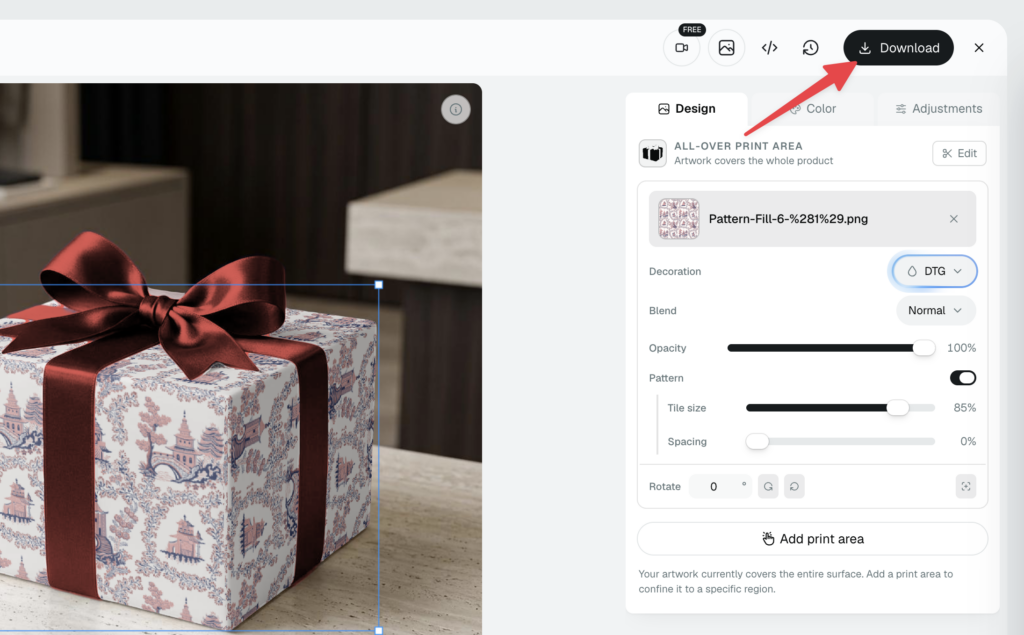
The saved template is where the time savings show up. Drop a new design into it and you have a second gift box mockup in seconds, on the same box, at the same angle, under the same light.
It also makes testing painless. Try three colorways of the same pattern on the identical box, post them, and let the click-through data pick the winner instead of guessing.
Selling a whole collection? Feed a set of designs through the bulk mockup generator and render an entire packaging line at once, instead of walking through these steps design by design.
You can go from a single image to a full catalog of custom gift box mockups without touching the setup again.
Why Dynamic Mockups Nails Custom Gift Box Mockups
A gift box is a hard thing to fake, because a pattern has to survive corners. Here is what “credible” actually means on a box like this.
The motifs bend and fade where the box turns an edge, instead of restarting, stretching, or spinning to a new angle from one face to the next.
The repeat holds the same scale across the top, front, and side, so it reads as one continuous wrap rather than three unrelated panels.
And the design stays on the box. It never spills onto the surface underneath or the shadows around it.
Get any of those wrong and the eye catches it instantly, even when the viewer cannot say why.
There is a bigger idea under all of this: let AI handle the mockup scene, and keep your artwork yours. General image generators will happily invent a box, but they will just as happily warp your logo or repaint your design into something close but wrong.
We looked at exactly this in can ChatGPT make product mockups, and mangled artwork is one of the first things to break. Pattern keeps your exact design honest and recognizable on every face.
To be fair to the alternatives, static PSD files and stock packaging packs can look genuinely good. But they need Photoshop and manual placement for every design, and even then the pattern is baked into a flat file, so it cannot hold a real repeat as the box turns.
There is also the plain matter of speed. Once your template exists, a fresh gift box mockup takes seconds in the browser, with no render queue and no software to open.
Here is a quick side-by-side:
| Method | Repeat holds across faces | No Photoshop | Ribbon on its own layer | Free to start |
|---|---|---|---|---|
| Dynamic Mockups + Pattern | ✅ | ✅ | ✅ | ✅ |
| Static PSD / stock pack | ❌ | ❌ | ⚠️ | ❌ |
| General AI image generator | ⚠️ | ✅ | ❌ | ⚠️ |
None of this is decoration, either. The unboxing moment has become a real competitive advantage in online retail, as Analytics Insight reports, and it starts with the box a shopper sees in your listing.
So make your first one. Generate a gift box mockup from a prompt, drop in your seamless design, and download it on our free plan, no credit card required. It’s free to start.
Showcase your E-commerce products like big brands, without costing a fortune.
Sign up today. No credit card required. →
And at the end, Dynamic Mockups can do much more than just creating gift boxes with patterns. See this intro video to see how it can help you sell more and support your business to scale.
Frequently Asked Questions
How do I make a gift box mockup for free?
Open Mock Anything AI, type a prompt like ‘a plain closed wrapped blank gift box on a studio table,’ and let it generate a blank box. Or search ‘gift box’ in the template library and grab a ready-made one. Then upload your seamless artwork, switch on Pattern, set the tile scale, and download. It all runs on the free plan, with no Photoshop and no credit card.
Do I need Photoshop to create a gift box mockup?
No. The whole workflow runs in your browser. You generate or pick a blank box, upload your seamless design, switch on Pattern, adjust the tile scale, and download a high-resolution image. There’s no PSD to buy and no editor to learn first. Pattern is built straight into the editor, so wrapping a design around a three-dimensional box only takes seconds.
Can I put my own seamless pattern on a gift box mockup?
Yes. That’s exactly what Pattern is for. Upload a seamless, tileable file and switch on Pattern, and the editor repeats your design across the top, front, and side of the box, keeping the same motifs and colors flowing around every corner. Set the tile scale to go bold with large motifs or dense with small ones, and drag to position it live.
Can I change the color of ribbon on a gift box mockup without changing the print?
Yes. The ribbon is its own layer, edited separately from the printed faces. It sits in front of the box, so it never picks up the artwork underneath. Swap it from navy blue to deep red, and your repeating pattern stays untouched below. That’s how you run the same box with a holiday ribbon and a spring one from a single setup.
Will a saved gift box mockup keep my artwork and pattern settings?
Yes. When you save the box as a template, it reopens later with the same artwork loaded and Pattern still switched on, so you never rebuild the setup from scratch. Drop in a new design and you’ve got a fresh mockup in seconds, on the same box, angle, and light. It also makes testing colorways painless, since every version starts from the identical scene.