

What Is a DST File?
A DST file is a machine embroidery stitch file. It tells an embroidery machine exactly where to place every stitch, in what order to sew them, and when to stop for a thread change.
Think of it as a set of turn-by-turn directions for the needle, not a picture of your design.
The full name is Tajima DST, short for Data Stitch Tajima. It was originally developed by Tajima, one of the first companies to build commercial embroidery machines, and the name stuck.
Here is the part that matters for you: DST is the most widely supported embroidery format there is. Most commercial and industrial machines can read it, which is why shops treat it as the universal export.
When a customer or a contract embroiderer asks for “the embroidery file,” they almost always mean a DST. When you are not sure which format to hand off, DST is the safe bet.
A DST does not hold an image. It stores stitch coordinates, jump stitches, trims, and color-change stops, which are the raw instructions a needle follows.
So double-clicking a.dst won’t show you your logo. There are no pixels inside it. There are no colors saved in it either.
You will also hear a DST called a machine embroidery file, because that is its entire job. It carries stitch data and nothing else, which keeps the file small and quick to move between a computer and a machine.
That trips up a lot of first-time sellers. The rest of this guide covers what actually opens a DST, how it differs from a normal image, where DST files come from, and how to make one from your own artwork.
What Opens a DST File?
DST files are opened by embroidery machines and embroidery software, not by a standard image viewer.
Your phone’s photo app, your browser, and the default image preview on your computer will all fail to read it. A DST file cannot be opened by ordinary image or design software.
There are really two things you might want to do: preview a design, or edit and digitize one. They call for different tools.
For previewing, free stitch viewers exist. They let you see the stitch path and count without paying for a full suite.
For editing and digitizing from scratch, you need the best software. Here is what people in the trade actually use:
- Dynamic Mockups: The first embroidery digitizing agent that gives you the mockup, the DST and the production sheet in 15 seconds as a real digitizer would be applying its expertise and creativity.
- Wilcom / Hatch: the industry-standard digitizing and editing suites.
- Embird: a modular editor that is popular with digitizers.
- SewWhat-Pro: a lightweight, low-cost editor and viewer.
- Ink/Stitch: free and open source, and it runs as an extension inside Inkscape.
- Machine-brand tools: Brother, Janome, Bernina and others ship their own design software.
Most of the professional options carry a license fee, and the top digitizing suites are not cheap. Ink/Stitch is the standout free tool, and it exports DST directly.
If all you want is to view a DST file for free, a stitch viewer or Ink/Stitch will show you the design and its stitch count without a paid license. Reworking the stitches or digitizing new art is when a full suite starts to earn its price.
Once the file is ready, it moves to the machine by USB stick, direct cable, or wireless transfer, depending on the model.
💡 Pro tip: You don’t always need to install anything just to see how a design will look stitched. Inside Dynamic Mockups you can preview the stitched result on a real product before you download a single file, no extra software required.
Why a DST File Stores Stitches, Not Colors
This is the quirk that catches almost everyone. A DST records where the colors change, but it never records what those colors are.
At each color stop, the file simply logs a “switch thread here” command and moves on. It does not save the thread brand, the shade name, or the exact color value.
Because of that, embroidery machines guess the thread colors from their own internal palette. Open the same DST on two different machines and you can see two different sets of colors.
The colors you actually want get assigned by the operator at the machine. They match each stop to a real thread.
This is exactly why a production sheet has to travel with the file. The sheet spells out the thread sequence, the stitch count, the trims, and the finished size, all the things the DST leaves out.
Without that sheet, the operator is guessing. Which color runs first? Which thread brand comes next?
Guessing is how a navy logo ends up stitched in teal, and how a reorder six months later comes back looking nothing like the first run.
💡 Pro tip: When you export a DST from Dynamic Mockups, we auto-generate the production sheet right alongside it. The operator gets the stitch file and the exact color order in one clean handoff.
DST File vs. Image File: How They Differ
A lot of people assume a DST is just another way to save a graphic. It works nothing like an image file, because it is built for a different machine entirely.
A PNG or JPG is made of raster pixels, a flat grid of colored dots. An SVG is made of vector paths, shapes described by math so they scale without blurring. A DST is made of stitch instructions, coordinates and commands a needle follows.
Here is the side-by-side:
| Format | What it stores | What reads it | Use it for |
|---|---|---|---|
| PNG / JPG | Raster pixels (a flat picture) | Any image viewer or browser | Listings, screens, previews |
| SVG | Vector paths (scalable shapes) | Design apps and browsers | Logos, clean scalable art |
| DST | Machine stitch instructions | Embroidery machines and software | Sewing a design onto fabric |
The key point: you cannot rename a PNG to.dst and expect it to sew. You cannot export a JPG straight into a stitch file either, because a DST holds no image or vector data at all.
The artwork has to be digitized first, turned into real stitch paths a machine can run. That is a separate step, and it is where most of the skill lives. More on that in the next section.
So when do you reach for each one?
Use a PNG or JPG for your product listings and on-screen previews. Reach for an SVG when you want crisp, scalable art. Save the DST for when the design is actually going on an embroidery machine.
For the screen and listing side of things, our guide to the best mockup file formats for ecommerce breaks down PNG, JPG, PSD, and SVG in plain terms.
Where DST Files Come From: Digitizing Explained
Every DST starts life as ordinary artwork, a logo, a line of lettering, a graphic. Getting from that art to a working stitch file is a process called digitizing.
Digitizing means converting your artwork into stitch paths, stitch types, densities, and underlay, which is the structure the machine needs to sew it cleanly.
It is a real craft. A skilled digitizer decides how each shape gets filled, whether an edge is a satin stitch or a running stitch, how tightly the stitches pack, and what underlay holds the fabric flat underneath.
Get it wrong and the design puckers, gaps, or thread breaks mid-run. Get it right and it lies smooth on the garment.
A few stitch types do most of the work. Satin stitches give clean borders and lettering, fill stitches cover the large areas, and running stitches handle fine outlines and the underlay beneath everything.
The traditional route is manual and slow. You send your file to a digitizer, wait in a queue, pay per design, and go back and forth on revisions before you ever test-sew it.
For a print-on-demand seller testing ten designs a week, that wait and per-design cost adds up quickly. It is the main reason embroidery can feel slower to launch than printing.
AI-assisted digitizing changes that timing. Tools like our Stitch AI agent draft the stitch file for you, much like our AI mockup generator drafts a product shot, so you start from a machine-ready draft instead of a blank queue.
For very fine lettering or heavily detailed logos, an experienced human digitizer still has an edge.
And why is the export almost always a Tajima DST? Because nearly every machine on the floor can read it.
That makes the file portable and safe to hand to any shop, with no risk of betting an order on one brand’s proprietary format. Even in 2026, with plenty of newer formats around, DST is still the one everyone accepts.
How to Create a Tajima DST From Your Design With Dynamic Mockups
You don’t need Photoshop or an expensive digitizing license to get a machine-ready DST. Here is the free path from artwork to file, start to finish.
Dynamic Mockups built the first embroidery digitizing agent that gives you the mockup, the DST and the production sheet in just 15 seconds with real digitizer expertise and creativity. All of it just from a browser.
Step 1: Upload Your Design and Pick an Embroidery Mockup
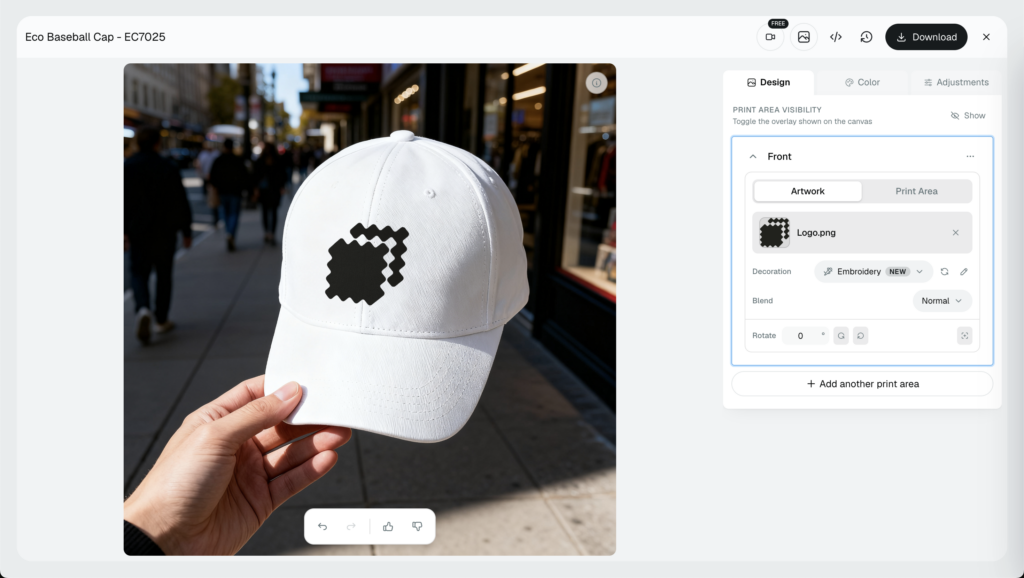
Start with your artwork as a PNG. Upload it, choose the embroidery decoration method, and drop it onto the product you plan to sell.
Browse our free mockup templates to find the right base, whether that is a hat, a t-shirt, or a tote. If you are working in apparel, our hoodie and sweatshirt mockups are a good place to test placement.
You will see a realistic embroidery preview on the exact item, thread texture and all, before you commit to anything.
Step 2: Let Stitch AI Digitize the Design
This is where the actual stitch file gets built. Stitch AI agent handles the digitizing, converting your flat design into stitch paths a machine can sew.
What you end up with is a real, machine-ready stitch file you can send straight into production, not a graphic that only looks stitched on screen.
Step 3: Refine the Stitches and Download Your DST
Fine-tune the result in our stitch editor before you export. Adjust the placement, check the stitch density, and make sure the small details still read at size.
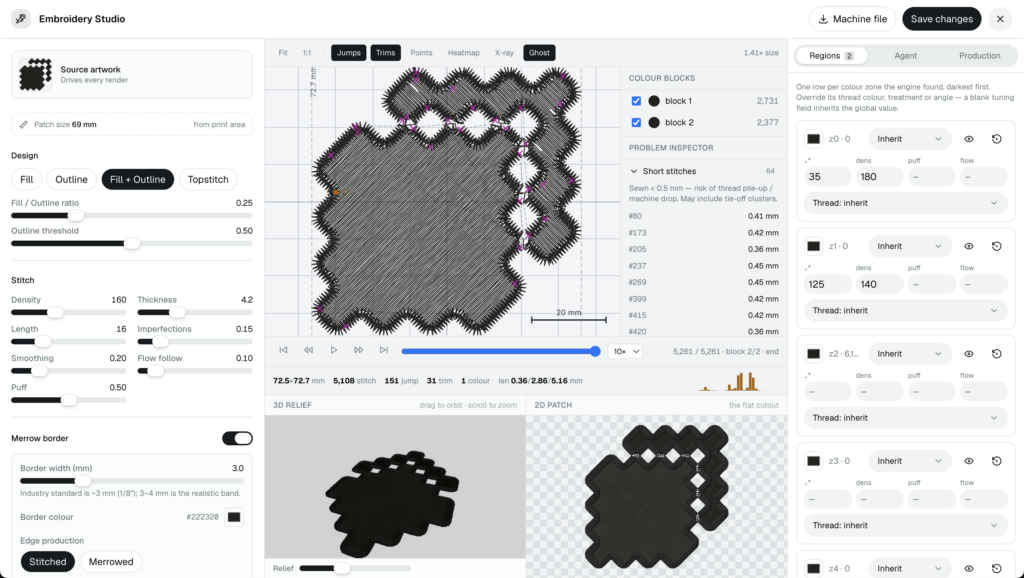
Then download a Tajima DST with its production sheet attached. Stitch count, thread sequence, trims, and finished size all travel with the file, so whoever runs the machine gets everything at once.
That is the full loop: artwork in, preview on the mockup, DST out, with no back-and-forth with a digitizer and nothing to install.
Ready to try it? Say yes to every order and generate a DST from your own design for free, and start on the free plan when you are ready to scale up.
Showcase your e-commerce products like big brands, without costing a fortune. Sign up today. No credit card required. →
Frequently Asked Questions
What program opens a DST file?
DST files open in embroidery machines and embroidery software, not standard image viewers. For editing and digitizing, shops use Wilcom, Hatch, Embird, or SewWhat-Pro, Dynamic Mockups. Ink/Stitch is the standout free option and runs inside Inkscape. Your phone’s photo app and browser will fail to read a DST, since it stores stitch instructions rather than pixels.
Can I convert a PNG to a DST file?
Not by renaming or a simple save-as. A PNG is made of pixels, while a DST is made of stitch instructions, so the artwork has to be digitized first. Digitizing turns your design into real stitch paths a machine can sew. Tools like Ink/Stitch or our Stitch AI handle that conversion and export a machine-ready DST from your PNG.
Does a DST file include thread colors?
No. A DST records where the colors change, but never what those colors are. At each stop it logs a switch-thread command and moves on, so machines guess shades from their own palette. That is why a production sheet has to travel with the file, spelling out the exact thread sequence, brands, and finished size the DST leaves out.
What is the difference between a DST and a PES file?
Both are machine embroidery stitch files, but they serve different needs. DST is the Tajima format, the universal export nearly every commercial and industrial machine can read, though it stores no thread colors. PES is Brother’s format and does save color data, but it works best on Brother and compatible home machines. When in doubt on compatibility, DST is the safer handoff.
How do I view a DST file for free?
Inside Dynamic Mockups you can preview the stitched result on a real product before downloading anything. Also, you can create Embroidery previews and design your product mockups for the same embroidery machine file you will download and send to your customers.